How to Make a Christmas Pajama Dance AI Video from Photos
Make a Christmas AI dance video with your partner, friends or family. Learn which photos to use, how to assign dancers, choose quality and download your MP4.
Choose a template, upload one clear photo per dancer, pick 480p or 720p and confirm photo permission. The template supplies the dance, so you do not need to film yourself or write a prompt.
Make my Christmas danceCheck template availability in the tool before you start.
What is a Christmas pajama dance AI video?
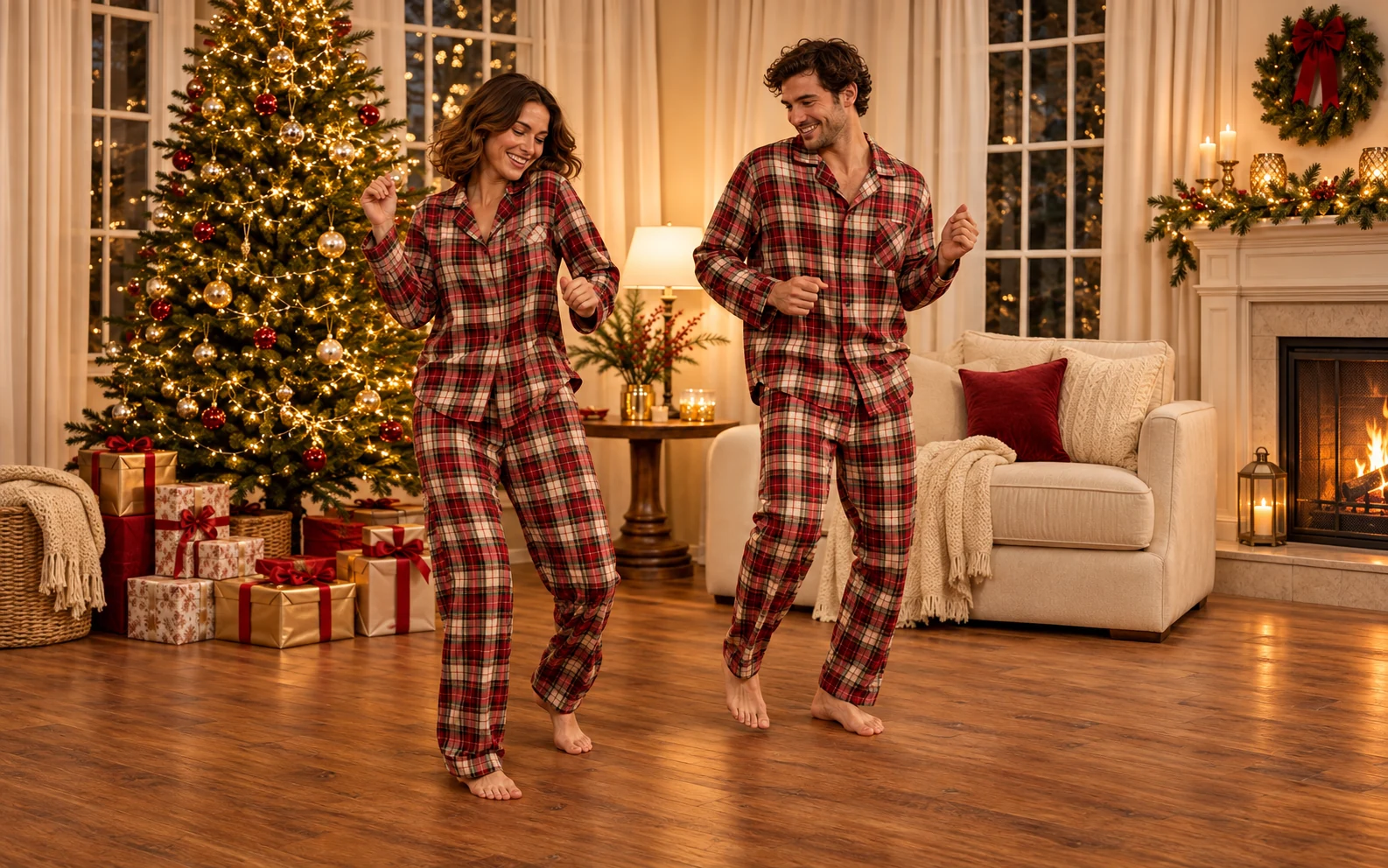
It is a photo-based holiday dance clip: you choose who appears, and a prepared template supplies the scene and dance reference. A duo can become a greeting for your partner, a joke for your best friend or a festive message for the family chat.
This guide covers the photo-to-video workflow on Christmas Pajama Dance AI. You do not need to upload a dance reference or describe the choreography. The video is designed for a vertical 9:16 frame, with a target length of 12 seconds. AI output can vary; faces, clothing and movement should be checked in the finished clip.
Before you start: prepare one photo per dancer
Pick a photo where each person's face is easy to recognize. A front-facing or gently angled photo with even light is a useful starting point. Include the upper body and the clothes you want to keep; a clear full-body photo gives the model more information about the outfit.
- Use a separate photo for each person. A duo needs two files, each showing one person. A shared group photo is not a substitute for the individual upload slots.
- Keep faces visible. Avoid sunglasses, strong shadows, heavy filters and motion blur.
- Wear the look you want. The workflow aims to preserve the clothing in your photos. It does not offer an automatic matching-pajama outfit change.
- Use supported files. JPG, PNG or WebP, up to 10 MB per photo. Each side must be between 301 and 5,999 pixels, with a width-to-height ratio between 0.4 and 2.5.
- Get permission. Use your own photos or photos you are authorized to upload and animate.
You and your partner do not need to be in the same room or photographed together. Choose separate photos with similarly clear faces rather than trying to match the backgrounds.
How to make your Christmas dance video
1. Choose a template for your cast
Explore the dance templates and choose the number of people you want in the clip:
| Template | Photos needed |
|---|---|
| Matching Christmas Pajamas | 2, one per person |
| Solo Christmas Dance | 1 |
| Best Friends Dance | 2, one per person |
| Christmas Group Dance | 3, one per person |
For a couple or a two-friend greeting, start with a duo template. The template images show the intended style; they are illustrations rather than verified generated examples.
2. Add a photo to each labeled position
In the generator, fill every photo slot. Follow the labels: Left dancer, Right dancer, and Center dancer when the template has three people. Left and right refer to what you see in the frame.
Check each thumbnail before continuing. If the people are assigned incorrectly, replace the photos in the relevant slots. You do not need to rename the files or combine the photos yourself.
3. Choose quality and check the credit cost
Select 480p or 720p. A 480p generation uses 1 credit; 720p uses 2 credits. The cost applies to the whole video, rather than to each dancer.
See the current credit packs before buying. Credits are sold as one-time packs. Higher resolution adds image detail; it does not guarantee a more accurate face or a better dance.
4. Confirm permission and start generation
Check the photo-permission box, then select Create My Christmas Dance. Sign in when prompted. If you need more credits, follow the purchase entry and return to your draft. Check the photos and selected quality again before submitting.
If the tool says the dance is temporarily unavailable, wait until it is available before trying again. Do not repeatedly submit while an existing task is still processing.
5. Review the full clip and download your MP4
When the task succeeds, play the entire video. Check both faces, the hands and clothing, especially during turns and faster movements. Listen to the soundtrack and check that the ending is intact.
Select Download MP4 to save the finished clip. Before sharing it, check the framing on your phone and keep any captions away from the faces. If you add or replace music in an editor, use a track you have permission to use.
Common problems and what to try
A face does not look like the person
Check the source photo first. Try one with a sharper, larger face, less filtering and more even light. AI likeness can still change during movement. A new generation uses credits, so review the input before starting another attempt.
The dancers start on the wrong sides
Check which photo is in the left, center or right slot. Reassign the photos before generating a new clip. The filename does not determine the dancer's position.
The clothes are not matching pajamas
Use photos in which the people already wear the pajamas you want. The template name describes the intended holiday style; it is not an outfit-change control.
The photo is rejected
Check the format, file size and dimensions listed above. Export a regular JPG, PNG or WebP instead of uploading a screenshot of a tiny thumbnail or an unsupported file format.
Processing is slow or the connection drops
Check the existing task in Your dances before submitting again. Slow processing alone does not mean it failed. If the system confirms a technical generation failure, the credits for that attempt are returned. An unwanted face or outfit in a successfully completed video does not automatically qualify for a free retry.
Questions before your first Christmas dance
Can I make a video from just one photo?
Yes, with the Solo Christmas Dance template. Duo templates need two individual photos, and the group template needs three. Each upload slot represents one dancer.
Do I need to learn the dance or write a prompt?
No. The template provides the prepared dance reference and instructions. You choose the people, template and quality.
Does the download include music?
The workflow attaches a template soundtrack. There is no song picker or custom audio upload in this flow, and a particular TikTok remix or recording is not guaranteed.
Can I use a pet photo?
This tutorial covers people. There is no dedicated pet mode or verified pet workflow, so use a clear photo of a person for each dancer.
Will the result exactly copy a viral Christmas dance?
No exact match is guaranteed. The template guides the performance, but timing, facial likeness and movement can vary. Review the complete result before sharing.
Bring your people into the same Christmas moment
Choose a template, prepare one photo for each dancer and check your settings. Start with the people who will enjoy seeing the finished clip together.
Make my Christmas danceView credit packs